
Lab 7: Moving the Camera#
In the Lab 6: 3D Worlds we saw how we use transformations to build a 3D world, align the world to the camera position and project the view space onto the screen space. We also created a Camera class to contains methods to perform these calculations. The next step is to obtain keyboard and mouse input and modify the Camera class to be able to move and direct the camera around the 3D world.
Task
Create a copy of your Lab 6 - 3D Worlds folder (you will have needed to have completed lab 6 before continuing here), rename it Lab 7 - Moving the Camera, rename the file 3d_worlds.js to moving_the_camera.js and change index.html so that the page title is “Lab 7 - Moving the Camera” and it embeds the moving_the_camera.js file.
Load index.html in a live server to check everything is working ok.

Fig. 57 The cubes from Lab 6: 3D Worlds.#
Getting keyboard and mouse input#
We need a way to get keyboard and mouse input from the user and use it to move the camera. To do this we are going create a class to handle all inputs from the keyboard and mouse.
Task
Add the following class to the webGLUtils.js file
class Input {

  constructor(canvas) {
    this.keys = {};
    this.mouseDelta = { x: 0, y: 0 };

    window.addEventListener("keydown", e => {
      this.keys[e.key.toLowerCase()] = true;
    });

    window.addEventListener("keyup", e => {
      this.keys[e.key.toLowerCase()] = false;
    });

    canvas.addEventListener("click", () =>
      canvas.requestPointerLock()
    );

    document.addEventListener("mousemove", e => {
      if (document.pointerLockElement === canvas) {
        this.mouseDelta.x += e.movementX;
        this.mouseDelta.y += e.movementY;
      }
    });
  }

  isDown(key) {
    return this.keys[key.toLowerCase()];
  }

  consumeMouseDelta() {

    const dx = this.mouseDelta.x;
    const dy = this.mouseDelta.y;

    this.mouseDelta.x = 0;
    this.mouseDelta.y = 0;

    return { dx, dy };
  }
}
In the moving_the_camera.js file, add the following after we have created the camera object
// Keyboard and mouse inputs
const input = new Input(canvas);
Here we create an Input class that contains the following properties and methods:
keys– a JavaScript object that stores a boolean value for each key that is pressedmouseDelta– a JavaScript object that stores the distance that the mouse pointer has moved since the last frameaddEventListener()– a method listens to events happening in the browser windowisDown()– a method that provides an easy way to check whether are particular key is being pressedconsumeMouseDelta()– a method that returns the values stored inmouseDeltaand then resets it to zero
The event listeners are used to update the keys and mouseDelta properties. For example, if we press the W key down when the browser window is active then "w" will be added to the keys object and assigned true value. When we release the W key the value will be changed to false.
Using keyboard input to move the camera#
Now that we have a way of capturing keyboard and mouse inputs, we are going to use keyboard input to change the coordinates of the \(\vec{eye}\) vector, i.e., the camera position. Recall the view matrix from Lab 6: 3D Worlds where we introduced the camera vectors seen in Fig. 58.
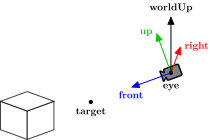
Fig. 58 Camera vectors#
Since these three vectors point to the right, up and to the front of the camera we can use these to move the camera in those directions. For example, to move the camera forwards and backwards we simply add and subtract the front vector to the \(\vec{eye}\) vector (Fig. 59).

Fig. 59 Moving the camera forwards and backwards.#
Task
In the camera.js file, change the Camera class method update() so that is looks like the following
update(input) {

  this.right = normalize(cross(this.front, this.worldUp));
  this.up  = normalize(cross(this.right, this.front));

  // Movement direction
  let moveDir = [0, 0, 0];
  if (input.isDown("w")) moveDir = addVector(moveDir, this.front);
  if (input.isDown("s")) moveDir = subtractVector(moveDir, this.front);
  if (input.isDown("a")) moveDir = subtractVector(moveDir, this.right);
  if (input.isDown("d")) moveDir = addVector(moveDir, this.right);
  moveDir = normalize(moveDir);

  // Move camera
  this.eye = addVector(this.eye, moveDir);
}
In the moving_the_camera.js file, delete the code that sets the \(\vec{eye}\) and \(\vec{front}\) camera vectors and change the method call to camera.upate() so that it takes the input object.
camera.update(input);
Here we have made changes the update() camera class method to create a movement direction vector and initialise it to all zeros. We then check whether any of the W, S, A and D keys are depressed, and if so we add the \(\vec{front}\) or \(\vec{right}\) vectors to the movement vector. If the movement vector is non-zero, i.e., we know that a key is being held down, we normalize it and add it to the \(\vec{eye}\) vector.
Now our WebGL application will listen to any keyboard input and move the camera using the WSAD keys. Refresh your browser and have a play with moving the camera around.
Controlling the speed of the camera#
Playing around with the camera movement you will also notice that the controls are quite sensitive and not very satisfying to use. To fix this we can control the speed at which the camera moves in the world space. Speed is distance divided by time so to ensure that the camera moves at a chosen speed we need to calculate the time that has elapsed since the previous frame was rendered.
We saw when we applied animations to the rectangle in the lab Lab 6: Transformations that the requestAnimationFrame() function provides the time that has elapsed since the WebGL application was started, so we can use this to measure the time that has elapsed since the previous frame was rendered and use this in our movement calculations.
Task
Before the render() function add the following line of code
// Timer
let lastTime = 0;
Then edit the commands to update the camera vectors, so it looks like the following.
// Update camera
const dt = (time - lastTime) * 0.001;
lastTime = time;
camera.update(input, dt);
Here we have created the variable lastFrame which is used to store the time (in milliseconds) that has elapsed when the previous frame was rendered. We use this and the current time to calculate the change in time between the two frames in seconds dt which we have added as an input parameter to the update() Camera class method, so we now need to update that.
Task
First add the following to the Camera class constructor.
// Movement settings
this.maxSpeed = 5;
Then change the update() method declaration so that it takes in the dt input.
update(input, dt) {
Now change the code used to move the camera to the following
// Move camera
this.eye = addVector(this.eye, scaleVector(moveDir, this.maxSpeed * dt));
So here we have set the speed of our camera to 5 units per second and have scaled the movement vector by this speed. The speed you choose is arbitrary, and we can change this to suit our needs, e.g., simulating a character sprinting. Refresh your browser and have a play with the controls, and you should have a much more satisfying result.
Using the mouse to point the camera#
We can now move the camera position using keyboard inputs, but we cannot yet point the camera in a different direction. This is usually done using mouse inputs but can also be done using keyboard or game controllers.
Yaw, pitch and roll#
The direction which the camera is pointing is governed by three angles called \(yaw\), \(pitch\) and \(roll\) which are collectively known as Euler angles. The name of these come from the aviation industry where they are related to the direction that an aircraft is facing. A plane on the ground first needs to taxi to the end of a runway which is does by steering left and right in the horizontal direction by changing its \(yaw\) angle. Then on take off it can point its nose upwards in the vertical direction by changing its \(pitch\) angle. Once airborne the plane can move its wingtips up and down thus changing its \(roll\) angle. Our camera is analogous to the plane (Fig. 60).
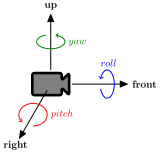
Fig. 60 Yaw, pitch and roll#
To point our camera we only need the \(yaw\) and \(pitch\) angles which we are going to change using mouse inputs such that when the mouse is moved left and right the \(yaw\) angle changes and when the mouse is moved up and down the \(pitch\) angle changes. Our getViewMatrix() method uses the front vector to calculate the view matrix, so we need some way of calculating the front vector from the \(yaw\) and \(pitch\) angles.
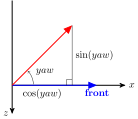
Fig. 61 Looking down the \(y\)-axis.#
Consider (Fig. 61) that shows the front vector which is at an angle \(yaw\) from the positive \(z\)-axis. The \(x\) and \(y\) components of the rotated vector are the adjacent and opposite sides of the right-angled triangle. Remembering that \(\cos(\theta) = adjacent/hypotenuse\) and \(\sin(\theta) = opposite/hypotenuse\), if front is a unit vector then \(hypotenuse=1\) and \(x\) and \(y\) components of the vector are
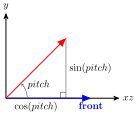
Fig. 62 Looking down the \(x\)-axis.#
We now do the same for the \(pitch\) angle. The \(z\) (and \(x\)) component of the vector is the adjacent side and the \(y\) component is the opposite side (Fig. 62), i.e.,
Combining this with the \(yaw\) rotation gives
This is the conversion between the \(yaw\) and \(pitch\) Euler angles and unit vector. However, this assumes alignment with the positive \(z\)-axis and in WebGL we look down the \(z\)-axis so we need to negate \(\vec{front}_z\). Therefore
So now we can calculate the front vector from the \(yaw\) and \(pitch\) Euler angles. To apply this to our Camera class we need to add attributes for the \(yaw\) and \(pitch\) Euler angles and calculate the \(\vec{front}\) vector.
Task
Add the following to the movement settings in the Camera class constructor
this.turnSpeed = 0.002;
this.yaw = 0;
this.pitch = 0;
And add the following before the \(\vec{right}\) and \(\vec{front}\) camera vectors are calculated in the update() method
const { dx, dy } = input.consumeMouseDelta();
this.yaw += dx * this.turnSpeed;
this.pitch -= dy * this.turnSpeed;

const cy = Math.cos(this.yaw);
const cp = Math.cos(this.pitch);
const sy = Math.sin(this.yaw);
const sp = Math.sin(this.pitch);

this.front = normalize([cp * sy, sp, -cp * cy]);
Here we have added Camera class properties for controlling the turn speed of the camera and storing the \(yaw\) and \(pitch\) angles. Then we have modified the update() Camera class method to get the mouse movement values from the input, use these to update the \(yaw\) and \(pitch\) angles and calculate the \(\vec{front}\) vector using equation (21). Note that we have subtract dy * this.turnSpeed from the \(pitch\) angle because the mouse movement is measured from the top of the canvas.
Refresh your browser and you can now move around our world space and point the camera using the keyboard and mouse.
Limiting the pitch angle#
A problem that we have with our camera is that when we try to look straight up or straight down the orientation of the world flips. Position the camera above (or below) the crates and move the camera past \(90^\circ\) and \(-90^\circ\).
This is due to the calculation of \(\cos(pitch)\) and \(\sin(pitch)\) in equation (21). To prevent this we can limit the \(pitch\) angle in the mouseMove() Camera class method.
Task
Add the following code to the update() Camera class method after the \(pitch\) angle has been updated.
// Limit the pitch angle to -89 degrees < pitch < 89 degrees
const pitchLimit = 89 * Math.PI / 180;
this.pitch = Math.max(-pitchLimit, Math.min(pitchLimit, this.pitch));
Refresh your web browser and try to look straight up or down towards the crates and you should find that the camera is prevented from moving past \(\pm 90^\circ\).
Back face culling#
Whilst moving your camera around your 3D world you may notice that we can move through objects and view them from the inside. All surfaces of the cubes are rendered, including those not visible from the camera because they are on the far side of the cubes. This is a waste of resources as WebGL is calculating the vertex and fragment shaders for objects that won’t be shown in the frame. To overcome this we can cull (omit) any surface of an object that is back facing the camera in a method called back face culling.
A normal vector (often just referred to as a normal) is a vector denoted by \(\vec{n}\) that is perpendicular to a surface at a given point (Fig. 63).
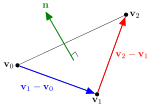
Fig. 63 The surface normal vector.#
Since in computer graphics are surfaces are triangles, we can easily calculate a normal vector using a cross product. If a triangle has vertices \(\vec{v}_0\), \(\vec{v}_1\) and \(\vec{v}_2\) then the normal vector can be calculated using
A surface is said to be back facing it its normal vector is pointing away from the camera position. If we only render the front facing surfaces then, assuming the surfaces are opaque, we should not notice any difference, and we have halved the number of surfaces the shader has to deal with (Fig. 64).
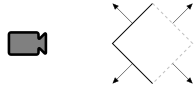
Fig. 64 Back face culling removes surfaces with vectors pointing away from the camera.#
But how do we know if a surface is back facing? Consider Fig. 65 which shows a back facing surface.
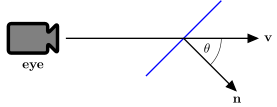
Fig. 65 A back facing surface.#
Here \(\vec{v}\) is a vector pointing from the camera to a point on the surface. Recall that the dot product is related to the angle between two vectors, i.e.,
If we have a back facing surface then \(\theta\) is less than 90\(^\circ\) and \(\cos(\theta)\) is a positive number so
So to apply back face culling the vertex shader just has to calculate the dot product between the \(\vec{n}\) and \(\vec{v}\) vectors and if it is a positive number it ignores the surface from then on.
Task
Add the following line of code to the initWebGL() function in the webGLUtils.js file.
gl.enable(gl.CULL_FACE);
Refresh your web browser and use the keyboard and mouse to put the camera inside a cube. You will now see that the back faces haven’t been rendered.
Exercises#
Make it so that the camera position always has a \(y\) coordinate of 0, i.e., like a first-person shooter game where the player cannot fly around the world.
Improve the realism of the camera by applying horizontal acceleration and deceleration to the camera movement.
Add a velocity vector \(\vec{v} = (0, 0, 0)\) to the camera class constructor. Check if one of the movement keys has been pressed and if so, accelerate the velocity vector in the horizontal directions (\(x\) and \(z\))
\[\begin{split} \begin{align*} v_x &= v_x + a \Delta t m_x, \\ v_z &= v_z + a \Delta t m_z, \end{align*} \end{split}\]where \(m_x\) and \(m_z\) are the \(x\) and \(z\) compnents of the movement vector and \(a\) is an acceleration factor (typical values 10 to 20).
Calculate the horizontal speed of the camera using \(s = \sqrt{v_x^2 + v_z^2}\). If this is greater than the maximum speed \(s_{\max}\), limit it using
\[\begin{split} \begin{align*} v_x &= \frac{s_{\max}}{s}v_x, \\ v_z &= \frac{s_{\max}}{s}v_y. \end{align*} \end{split}\]If no button is pressed, you want the speed of the camera to slow to zero. To do this multiply the horizontal velocity by a number less than 1
\[\begin{split} \begin{align*} v_x &= d v_x, \\ v_z &= d v_z, \end{align*} \end{split}\]where \(d\) is a deceleration factor (typical value around 0.9).
Once you have updated the velocity vector, use it to calculate the new camera position
Add the ability for the user to perform a jump by pressing the space bar.
Add properties for the height of the jump, \(H = 1\), gravity, \(g = 9.81\), and a boolean flag for whether the camera is on the ground (which is initially set to true) to the Camera class.
Check when the space bar has been pressed (using
input.isDown(" ")) and the camera is on the ground. If so change the on ground flag to false and the vertical velocity to\[ v_y = \sqrt{2 H g}. \]Apply gravity to the vertical velocity
\[ v_y = v_y - g \Delta t. \]Check if the camera is back on the ground using \(\vec{eye}_y < 0\). If so set \(\vec{eye}_y = 0\), \(v_y = 0\) and the on ground flag to true.
Add collision detection so that the camera cannot pass through the cube objects. A simple (but crude) way of doing this is [1]:
Loop through all the cubes and calculate a vector from the camera position to the object centre
\[ \vec{offset} = \vec{object} - \vec{eye}. \]If the length of the \(\vec{offset}\) vector is less than 1, move camera away from object using
Video walkthrough#
The video below walks you through these lab materials.